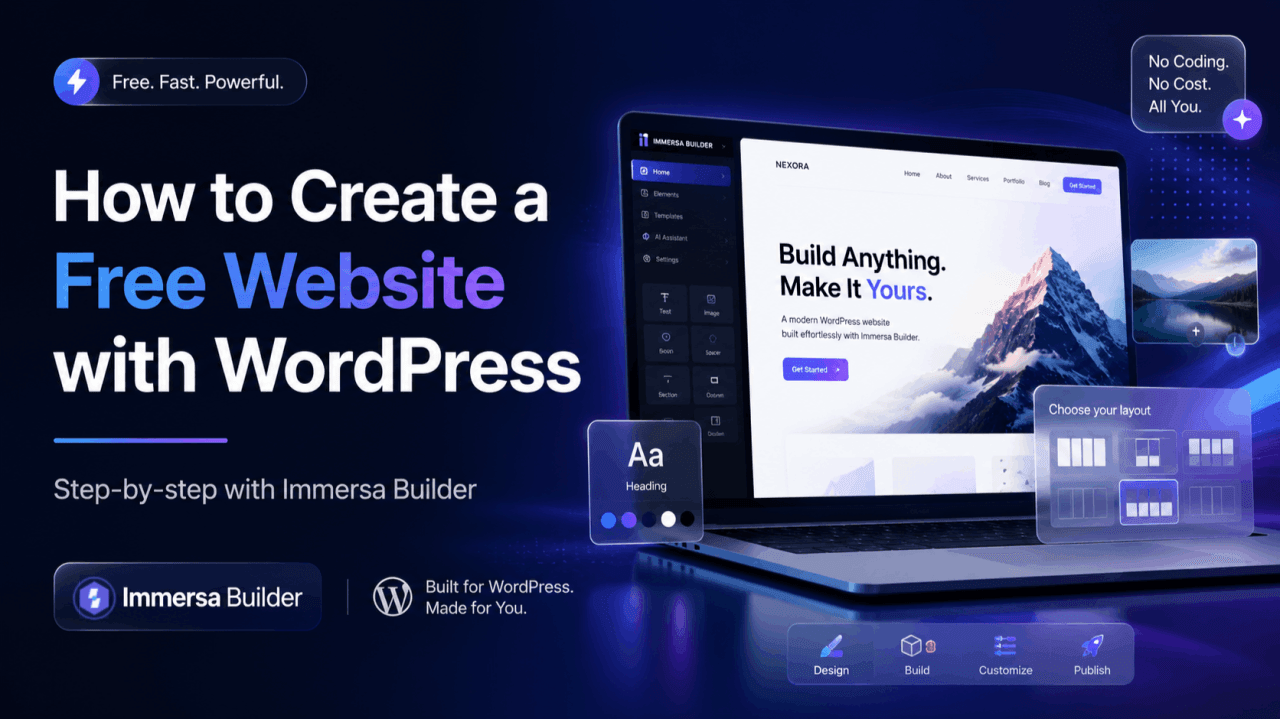
Building a website used to feel like a serious technical project.
You needed a developer, a designer, a copywriter, several paid plugins, and weeks of back-and-forth before the website was ready to launch.
For a new business owner, freelancer, creator, consultant, or local service provider, that process can be expensive and overwhelming.
But WordPress has changed significantly.
Today, you can build a professional-looking website using WordPress, a visual page builder, ready-made templates, and AI-assisted content—without writing code or starting every page from scratch.
That is exactly why we created Immersa Builder.
The goal was simple: make professional WordPress website creation more accessible to people who have a business idea but do not necessarily have the budget, technical knowledge, or time to build everything manually.
In this article, I will explain how you can use WordPress and Immersa Builder to create your website step by step.
WordPress and the Immersa Builder theme can be used for free. However, a live website may still require a domain name and hosting plan, depending on where you choose to host it.
Why WordPress Is Still One of the Best Platforms for Building a Website
There are many website builders available today, but WordPress continues to offer something most closed platforms cannot provide: ownership and flexibility.
With WordPress, you are not restricted to one company’s ecosystem.
You can:
- Control your website and its content
- Choose your own hosting provider
- Install themes and plugins
- Add eCommerce functionality
- Create blogs and landing pages
- Improve your website’s SEO
- Move your website to another hosting provider
- Scale from a basic website to a larger business platform
The challenge is that WordPress can sometimes feel complicated for beginners.
After installing WordPress, you are often presented with an empty dashboard and hundreds of themes and plugins. It becomes difficult to understand what to install, how to design each page, and how to make the website look consistent.
Immersa Builder was designed to simplify that experience.
What Is Immersa Builder?
Immersa Builder is a free WordPress theme built to help users launch websites faster using professionally designed starter templates.
Instead of starting with a completely blank website, you can select a template based on your business type, import it, replace the existing content, update your branding, and launch.
The theme works with Elementor, allowing you to visually edit pages without touching the underlying code.
Immersa Builder also works with the Immersa Core plugin, which provides the starter-site import system, additional design functionality, and AI-assisted features.
This means the website-building process becomes less about coding and more about selecting, editing, and personalising.
Step 1: Get a Domain and WordPress Hosting
Before building your website, you need somewhere to host it.
A domain is the website address people will use to find you, such as:
yourbusiness.com
Hosting is the server where your website’s files, images, database, and content are stored.
Many hosting providers offer one-click WordPress installation. Once WordPress is installed, you will receive access to the WordPress dashboard, which usually looks like this:
yourdomain.com/wp-admin
Log in using the username and password created during installation.
For testing or learning, you can also install WordPress locally on your computer. However, a public business website will eventually require live hosting and a domain.
Step 2: Install the Immersa Builder Theme
After logging into your WordPress dashboard, go to:
Appearance → Themes → Add New
Search for:
Click Install, wait for the installation to complete, and then click Activate.
Once activated, Immersa Builder will become the main design framework for your website.
You do not need to download complicated template packages or manually upload theme files when installing it directly from the WordPress theme directory.
Step 3: Install the Immersa Core Plugin
After activating the theme, WordPress will prompt you to install the Immersa Core plugin.
This plugin powers important features such as:
- Starter templates
- Demo-content imports
- Additional theme functionality
- AI-assisted content features
- Website setup options
Click the installation prompt and activate the plugin.
You can also install it manually by going to:
Plugins → Add New Plugin
Search for Immersa Core, install it, and activate it.
The theme controls the overall appearance of your website, while the core plugin provides the supporting functionality needed for the complete experience.
Step 4: Use the Setup Wizard
Once the theme and plugin are activated, find Immersa Core in the WordPress dashboard.
Open the Setup Wizard and click Start Setup.
The setup wizard guides you through the initial configuration instead of leaving you to search through dozens of unrelated WordPress settings.
Depending on the selected template, it may help you configure:
- Required plugins
- Website structure
- Starter pages
- Navigation menus
- Demo content
- Global website settings
For someone building their first WordPress website, this guided approach can save a considerable amount of time.
Step 5: Select a Starter Website
This is where the website begins to take shape.
Immersa Builder includes starter sites for different industries and business models. You can select a design based on the type of website you want to create.
For example, you may choose a template for:
- An agency
- A restaurant
- A local business
- A freelancer
- A consultant
- A service company
- A portfolio
- A startup
- A personal brand
The selected starter site provides the initial layout, pages, typography, sections, buttons, images, and overall website structure.
Instead of spending days deciding where to place every section, you begin with a professionally structured foundation.
After choosing a template, start the import process.
The system will import the relevant design structure and content into your WordPress website. The import may take a few moments depending on your hosting performance and internet connection.
Once complete, your website should already resemble the selected demo.
Step 6: Replace the Demo Branding
A starter template is only the beginning. The next step is making it feel like your business.
Go to:
Appearance → Customize
From here, you can configure the global identity of your website.
Upload Your Logo
Replace the demo logo with your own business logo.
You can also upload a favicon—the small icon displayed in browser tabs and bookmarks.
Update the Colours
Choose colours that match your brand identity.
You may want to define:
- A primary brand colour
- A secondary accent colour
- Button colours
- Background colours
- Heading and body-text colours
Using a consistent colour system helps the website feel intentional and professional.
Select Your Typography
Choose fonts that are easy to read and appropriate for your brand.
A modern technology company may use a clean sans-serif font, while a legal, luxury, or editorial brand may choose a more refined heading style.
Avoid using too many font families. In most cases, one font for headings and one for body text is enough.
Configure the Header and Footer
Update the main navigation menu, call-to-action button, contact details, social links, copyright text, and footer links.
Your header should make it easy for visitors to understand where to go next.
For a service business, a simple menu might include:
Home, About, Services, Portfolio, Blog and Contact
A strong call-to-action could be:
Book a Consultation
Get a Free Quote
Start Your Project
Contact Us
Step 7: Edit Your Website Visually with Elementor
Immersa Builder is designed to work with Elementor, one of the most widely used visual page builders for WordPress.
To edit a page, go to:
Pages → All Pages
Choose the page you want to update and click:
Edit with Elementor
The page will open in a visual editing interface.
You can click directly on headings, paragraphs, buttons, images, icons, and website sections to modify them.
For example, you can change a heading from:
We Deliver Creative Solutions
to something specific to your business:
Website Development and SEO Solutions for Growing Businesses
You can update buttons, replace stock images, change section spacing, and rearrange content without writing HTML or CSS.
Elementor also allows you to preview the website on desktop, tablet, and mobile devices.
This is important because a website that looks good on a laptop may still need adjustments for smaller screens.
Step 8: Personalise the Website Content
One of the most common mistakes people make with starter templates is leaving generic demo content unchanged.
Your website should clearly answer four questions:
- What does your business offer?
- Who is it for?
- Why should someone trust you?
- What should the visitor do next?
Your homepage should not only look attractive. It should help potential customers understand your value within a few seconds.
A strong homepage usually includes:
- A clear headline
- A short value proposition
- A primary call-to-action
- Your main services
- Business benefits
- Testimonials or reviews
- Previous work or case studies
- Frequently asked questions
- Contact information
Instead of writing:
We provide innovative solutions for every business.
Write something more specific:
We build conversion-focused WordPress websites for service businesses that want to generate more enquiries and sales.
Specific messaging builds trust because visitors immediately understand what you do.
Step 9: Use AI as an Assistant, Not a Replacement
Immersa Builder includes AI-assisted functionality to help users create and refine website content.
AI can be useful when you are struggling with:
- Homepage headlines
- Service descriptions
- About-page content
- Calls to action
- Frequently asked questions
- Blog ideas
- Section introductions
However, AI-generated text should still be reviewed and personalised.
Add information that only you can provide:
- Your real experience
- Your process
- Your industry knowledge
- Your service area
- Your customer problems
- Your results
- Your company story
- Your unique approach
The best website content combines AI efficiency with genuine business insight.
A website should not sound as though it was generated for any company. It should sound like it belongs to your company.
Step 10: Review the Essential Pages
Before publishing, make sure your website includes the pages visitors expect to find.
For most business websites, these include:
- Home
- About
- Services
- Contact
- Privacy Policy
Depending on your business, you may also need:
- Portfolio
- Case Studies
- Blog
- Testimonials
- Frequently Asked Questions
- Terms and Conditions
- Refund Policy
- Shipping Policy
- Cookie Policy
Each service should ideally have its own dedicated page.
For example, rather than listing five services in one small homepage section, create individual pages for each major service. This gives visitors more information and can also improve the website’s search visibility.
Step 11: Make the Website Search-Friendly
A beautiful website is valuable, but it also needs to be understandable to search engines.
Before launching, review the basic SEO elements.
Each important page should have:
- One clear primary topic
- A descriptive page title
- A concise meta description
- A logical heading structure
- Descriptive image alt text
- Internal links to related pages
- A readable URL
- Useful and original content
For example, a page URL such as:
yourbusiness.com/services/website-development
is more useful than:
yourbusiness.com/page-123
You should also connect the website to Google Search Console after launch and submit your XML sitemap.
SEO is not an instant result, but a properly structured website creates a stronger foundation for long-term visibility.
Step 12: Test Everything Before Launching
Never launch a website immediately after importing a template.
Review the complete website as a visitor.
Test:
- Navigation links
- Contact forms
- Buttons
- Phone numbers
- Email addresses
- Social-media links
- Mobile responsiveness
- Tablet layouts
- Image loading
- Page speed
- Spelling and grammar
- Footer links
- Privacy-policy links
Open the website on an actual mobile device rather than relying only on the page-builder preview.
Ask another person to browse the website and explain what they think the business offers. Their response can reveal whether your message is clear.
A Website Does Not Need to Be Complicated
Many businesses postpone launching because they believe the first version must be perfect.
It does not.
Your first website needs to be clear, credible, functional, and easy to improve.
You can begin with a focused five-page website, publish it, collect feedback, analyse visitor behaviour, and continue improving it over time.
That is one of the main advantages of WordPress: the website can grow with your business.
You can later add:
- Online payments
- Appointment booking
- eCommerce
- Membership functionality
- Courses
- Multilingual content
- Marketing automation
- CRM integrations
- Advanced SEO tools
You do not need every feature on the first day.
Why We Built Immersa Builder
We built Immersa Builder after seeing the same problem repeatedly.
People had strong business ideas but struggled to turn them into a professional online presence.
Some could not afford custom development. Others tried free themes but ended up with websites that felt unfinished, inconsistent, or difficult to customise.
Immersa Builder is intended to reduce that gap.
It gives WordPress users a practical starting point through:
- Ready-made website designs
- Guided setup
- Visual editing
- Global design controls
- AI-assisted content
- Free access to the core website-building experience
It is not designed to remove creativity or replace professional developers.
It is designed to remove the unnecessary friction that prevents people from launching.
Final Thoughts
Creating a professional website no longer requires weeks of development or a large initial investment.
With WordPress, Immersa Builder, Immersa Core, Elementor, and a suitable starter template, you can move from an empty WordPress installation to a structured business website much faster.
The process is straightforward:
Install the theme, activate the core plugin, choose a starter site, update your branding, personalise the content, test the website, and publish it.
Your business deserves more than a social-media profile or a temporary landing page.
It deserves a digital platform that you control.
Immersa Builder is available for WordPress users who want to build faster, customise visually, and launch without coding.
- Immersa Builder: https://wordpress.org/themes/immersa-builder/
- Immersa Core: https://wordpress.org/plugins/immersa-core-starter-templates-ai/
Try it, build your first website, and share your feedback with us. The product will continue improving based on the real experiences of the people using it.